General Configuration
Note
If you make any changes in the General tab and save them, the ATIS will automatically disconnect from the network (if it is currently connected).
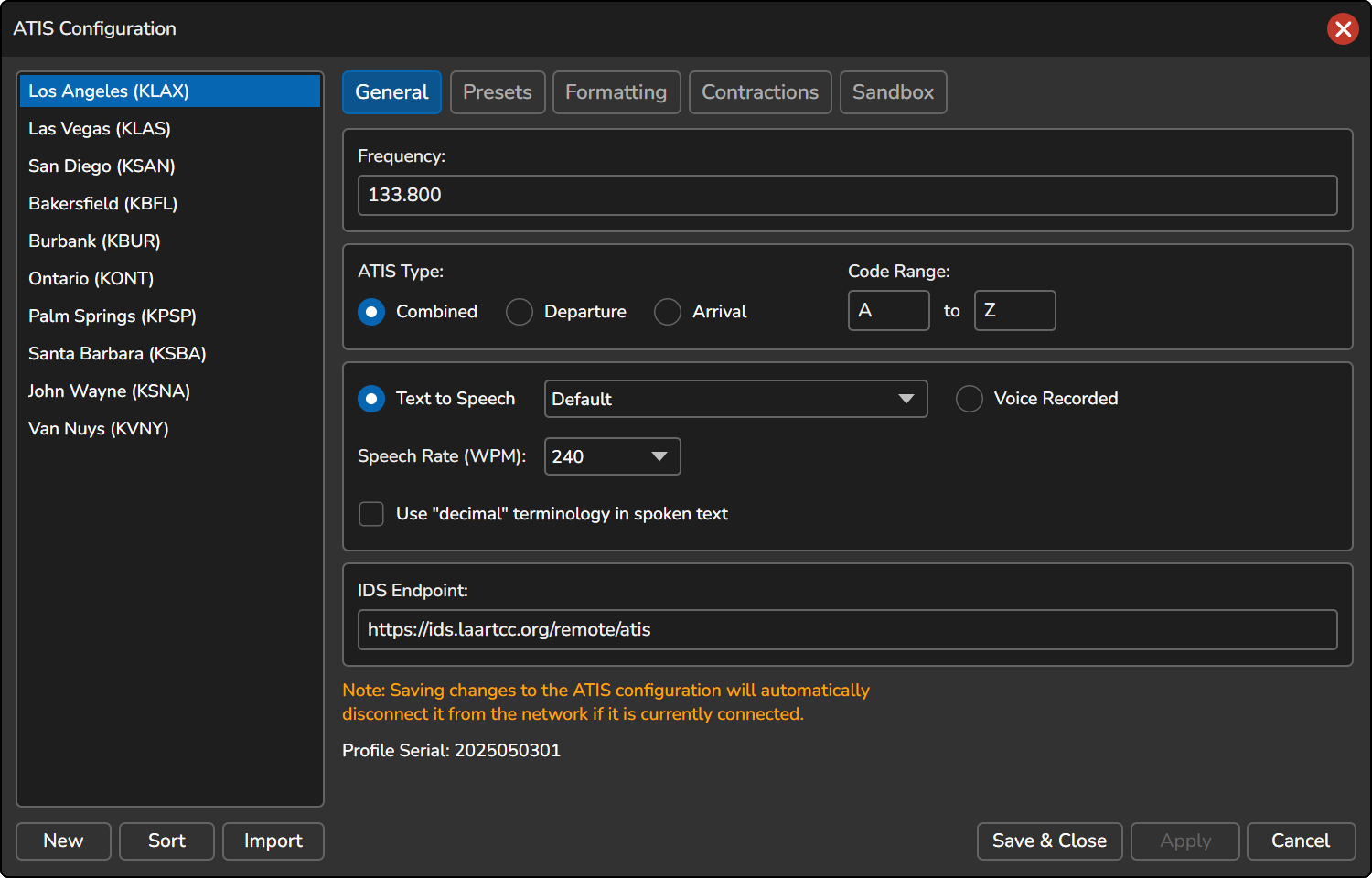
To configure an ATIS station, click on the station in the left sidebar.
- Frequency: The VHF frequency assigned to the ATIS station.
-
ATIS Type: The type of ATIS station, which determines how the ATIS callsign will be displayed on the network.
-
Combined: Displayed as
XXXX_ATIS -
Departure: Displayed as
XXXX_D_ATIS -
Arrival: Displayed as
XXXX_A_ATIS
-
Combined: Displayed as
-
Code Range: Allows you to define the ATIS code range for the station. This feature is helpful for restricting the Departure ATIS to a specific range (e.g.,
A..N) and the Arrival ATIS to a different range (e.g.,M..Z). - Text to Speech/Voice Recorded: This option lets you choose between digitalized (text-to-speech) or manually recorded voice for the ATIS. If “Text to Speech” is selected, you can further specify the desired voice option. The “Default” option uses the voice similar to that of FAA D-ATIS.
- WAV Voice Pack: Builds the voice ATIS from pre-recorded WAV clips instead of text-to-speech. Choose a pack from the drop-down list, or use Manage Voice Packs to import one. See Voice Packs.
- Use “decimal” terminology in spoken text: Enabling this option will cause numbers with decimals to be spoken as “decimal” rather than “point.” For example, “one three four decimal two five” instead of “one three four point two five.”
-
IDS Endpoint: If your facility is equipped with an Information Display System (IDS) that is compatible with vATIS, you can enter the URL for automatic ATIS information updates. When a URL is specified, vATIS will send an HTTP POST request with a JSON payload similar to the following:
{
  "facility": "KLAX",
  "preset": "NOISE",
  "atisLetter": "L",
  "atisType": "combined",
  "airportConditions": "ILS APP IN PROG RWY 6R OR VCTR FOR VIS APP WILL BE PROVIDED. OPPOSITE DRCTN TFC DEPTG RWY 25R.",
  "notams": "ASDE-X SYSTEM IN USE. ACTIVATE TRANSPONDER WITH MODE C ON ALL TWYS AND RWYS. READBACK ALL RWY HOLD SHORT INSTRUCTIONS.",
  "timestamp": "11/27/2024 15:39:59"
  "version": "4.1.0-beta.1"
}
vATIS includes a signed JWT (JSON Web Token) in the HTTP header of the POST request as an Authorization Bearer token. You can optionally validate requests to your IDS endpoint by verifying the JWT token using the public JWKS token.
Custom METAR Source
By default, vATIS downloads METAR reports from the VATSIM METAR service. Some airports have no METAR available in the VATSIM feed. For those stations, you can point vATIS at a different METAR source. This is not exposed in the vATIS user interface, so it must be set by editing the Profile file manually.
- Close vATIS (or at least close the Profile).
- Open the Profile’s JSON file in a text editor. Profiles are stored in the
Profilesfolder of the vATIS App Data folder, and the file name is the profile ID. See Finding the Profile ID. - Locate the station under
stationsand add (or edit) thecustomMetarUrlproperty:
{
    "identifier": "KLAX",
    "customMetarUrl": "https://example.com/metar/{icao}"
}
- Save the file and reopen the Profile.
-
{icao}placeholder: Replaced with the station’s airport identifier (e.g.,KLAX). The placeholder is optional if your URL is fixed. - Response format: The URL must return plain text containing a METAR or SPECI report whose airport identifier matches the station. If the response contains multiple lines, the first matching report is used.
- Fallback: If the custom source fails or returns no matching METAR, vATIS falls back to the default VATSIM METAR source.
-
Removing the override: Delete the
customMetarUrlproperty, or set it tonullor an empty string.
Alternating Voices
You can have the ATIS alternate between several text-to-speech voices, changing the voice with each new ATIS letter. This is not exposed in the vATIS user interface, so it must be set by editing the Profile file manually.
- Close vATIS (or at least close the Profile).
- Open the Profile’s JSON file in a text editor. Profiles are stored in the
Profilesfolder of the vATIS App Data folder, and the file name is the profile ID. See Finding the Profile ID. - Locate the station under
stationsand add thealternatingVoicesproperty to itsatisVoiceobject:
{
    "identifier": "EBBR",
    "atisVoice": {
        "useTextToSpeech": true,
        "voice": "Default",
        "alternatingVoices": ["Voice A", "Voice B"]
    }
}
- Save the file and reopen the Profile.
- Voice names: Each entry must exactly match a voice name from the voice list in the Text to Speech drop-down.
- Order: Voices are used in the order listed, one per ATIS letter, starting with the first entry on the first letter of the station’s code range. After the last entry, the list wraps back to the first.
-
Overrides the selected voice: When two or more voices are listed,
alternatingVoicesis used instead of the voice selected in the Text to Speech drop-down. If a name is not found, the default voice is used for that letter. -
Removing the override: Delete the
alternatingVoicesproperty, or leave it empty or with a single entry.